How to sell gift boxes on Shopify: ready-made sets and build-your-own boxes
Gift shoppers don't want to browse. They want a box that is already a good present, or a quick way to fill one. Here is how to sell both on Shopify, with the gift message saved on the order where your packers will see it.
The problem with gift boxes on Shopify
A gift box sounds simple: a few products, one price, a nice message. In practice, stores run into the same four problems.
- The box is several products. If you create a separate "Gift box" product, its stock is not linked to the candle, mug and chocolates inside it. You can sell a box when the mugs have run out.
- The price goes stale. A box priced by hand at $45 stays $45 when you raise the price of what is inside.
- Customers want to choose. One person wants the dark chocolate, the next wants the milk. A fixed box loses the shopper who wants one item swapped.
- The gift message gets lost. Many themes have an order note in the cart, but it is one note for the whole order, easy to miss, and not linked to the box. Packers end up reading emails to find out what to write on the card.
What Shopify gives you on its own
Shopify's free Shopify Bundles app can create a fixed bundle product from existing products, and its stock follows the components. That covers a simple ready-made set. It does not let the customer choose the contents, and it has no gift message or delivery date field. More in Shopify Bundles alternative.
Decide which kind of gift box you sell
- A ready-made gift set. You choose the contents: "The cosy night in" with a candle, a mug and a tin of truffles. Best when shoppers want a safe present and you want to move a known set of products. In ZS Bundles this is a Complete the bundle deal.
- A build-your-own gift box. The customer picks any 3 (or 4, or 6) from a list you choose. Best for food, beauty, socks, tea and anything with flavours or scents. In ZS Bundles this is a Mix & Match deal.
Many stores run both: a ready-made set on the product page for the quick buyer, and a build-your-own box on its own page for the shopper who cares about every item.
Option 1: A ready-made gift set
- Install ZS Bundles, press Turn on in theme on the app's home page, then Save in the theme editor.
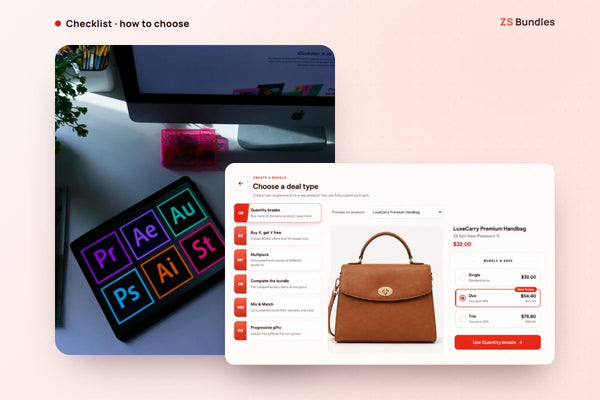
- Click Create bundle deal and choose Complete the bundle.
- The bundle starts with the product you previewed and a second one. Add the rest of the set.
- Set the saving, for example 20% off each item. Because it is a percentage of your product prices, the set price follows when those prices change.
- Give it a name a shopper would give it. "The cosy night in" sells a present. "3 items, 20% off" sells a discount.
- Publish. The set shows on the pages of the products inside it, and Shopify applies the price at checkout.
Each item in the set is still a normal product with its own stock. When one runs out, the set can't be bought, so you never sell a box you cannot pack.
See a gift box on the demo store Install ZS Bundles free
Option 2: A build-your-own gift box
- Create bundle deal → Mix & Match.
- Under Box products — what customers can choose from, click Select box products, or fill the box from a collection. A collection keeps the box up to date when you add or remove products.
- Under Box size, choose how customers pick the size. Fixed pack sizes gives one tab per size (a box of 3, a box of 6). Free range allows any amount between a minimum and a maximum.
- Choose a Box product under Box product — what the cart shows. It stands for the whole box, so the cart shows one line ("Gift box of 3") with the chosen items listed underneath, instead of three loose lines.
- Set the Discount: an amount off, or a fixed Box price.
- Under Where this box is shown, pick the product page column or Page, a full-width layout with steps and a summary panel. The page layout suits a gift builder best: add the ZS Bundle app block to a full-width section or its own page template.
- Publish.
Stock is checked per item, so a sold-out flavour can't be picked, and the box price is set by Shopify at checkout.
Build a box on the demo store Install ZS Bundles free
Add a gift message and a delivery date
This is the part that turns a bundle into a gift. In the bundle editor, turn on Gift message & extras.
- Set the Section title. The default is "Make it a gift".
- Add a field for each thing you want to ask. For each field, set a Label and a Type: Short text (the recipient's name), Long message (the card message), Date (when to deliver) or Choose one (for example a choice of wrapping paper).
- Set the Max characters to fit your card. A short limit stops a message that will not fit.
- Tick Required only when you really need the answer. A required field blocks Add to cart until it is filled in.
Each answer is saved on the order under its label, so it shows on the order page and on the packing slip. Keep the labels short: "Gift message" reads better on a packing slip than "Field 1".
A note on the date field: it records the date the customer asks for. It does not change your shipping rates or promise a delivery day, so say on the page what you can actually meet (for example "We ship within 2 working days").
Add a deadline for the holidays
Gift boxes sell to a date: Christmas, Valentine's Day, Mother's Day. Turn on the Countdown timer in the bundle editor and set it to your real last order date for delivery. A countdown to a made-up deadline teaches shoppers to ignore it. A countdown to "last day to order for Christmas delivery" is useful information. For more seasonal ideas, see Black Friday bundle ideas.
Tips for gift boxes that sell
- Price in round, giftable numbers. Shoppers often have a budget in mind: "something around $50". A fixed Box price of $49 is easier to choose than $47.60.
- Show what is in the box. A gift buyer is buying for someone else and wants to see every item before paying.
- Watch the item with the least stock. A ready-made set is only as available as its scarcest product. Check stock before a holiday push.
- Keep the choice list short. Eight to twelve products to pick from is easier than forty. Too much choice slows the shopper down.
- Check your margin. Packaging and the card cost money too. Use the bundle discount calculator before you set the saving.
- Add a small extra at checkout. A greeting card or gift wrap as a tick-box add-on works well next to a gift box. See product page upsells.
What it costs
Complete the bundle and Mix & Match are on the Free plan, with one bundle live at a time and up to 20 bundle orders a month. Gift message & extras and the Countdown timer need the Starter plan ($12.99 a month, 500 bundle orders, unlimited live bundles), with a 14-day free trial. We set up your first two bundles for free.